Labeling and Shelving Accessions
Updated 04-10-2026
Labeling Boxes
Fill in the Box Template with the Accession number, title, date range, and the box number. For accessions that have more than one box, make sure to put “Box # of #” (e.g., Box 10 of 12).
NOTE: Try not to adjust the label sizes or spacing in the Word doc.
Before printing, place a sheet of label paper (next to the small gray HP printer in the processing room) in the manual feed tray of the printer, not the main paper compartment.
Place labels on the appropriate boxes.
Shelving Materials and Linking Locations
Consult with colleagues, if needed, about an appropriate location to shelve the materials. Note cage, row, section, and shelf of each box.
Return to Resource Record in ArchivesSpace and scroll to the Instances field. It should look like this:
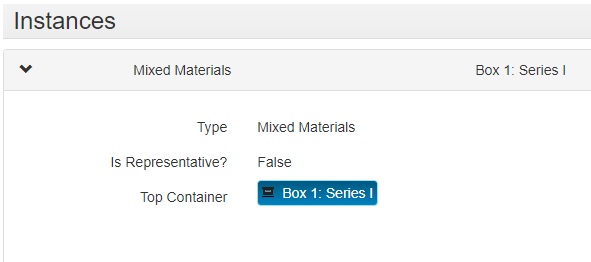
To link location information:
- Click on the blue Top Container button, and then click View.
- A window will pop up with the container details. Click Edit.
- In the Locations field, click Add Location (to the right).
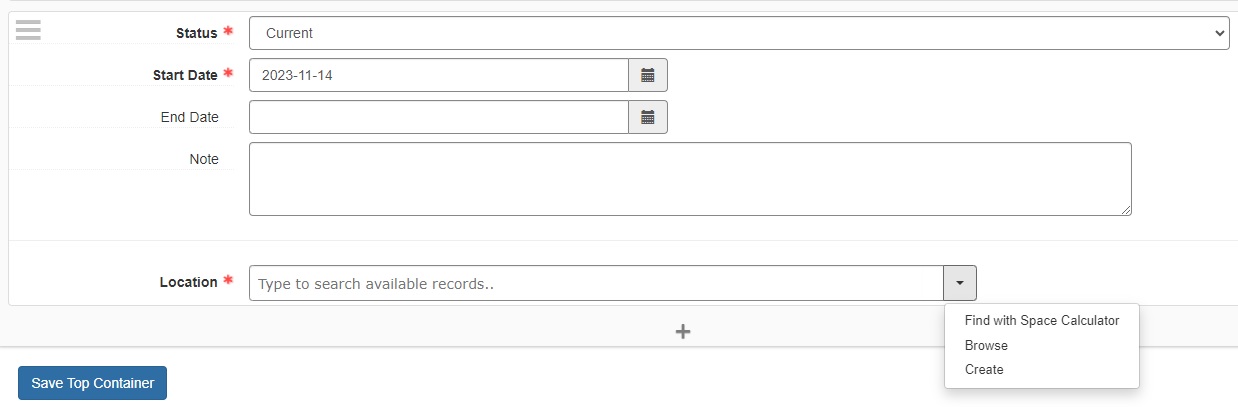
All cage locations should be in ArchivesSpace. From the dropdown menu, select “Browse.” A window with then come up and look like this:
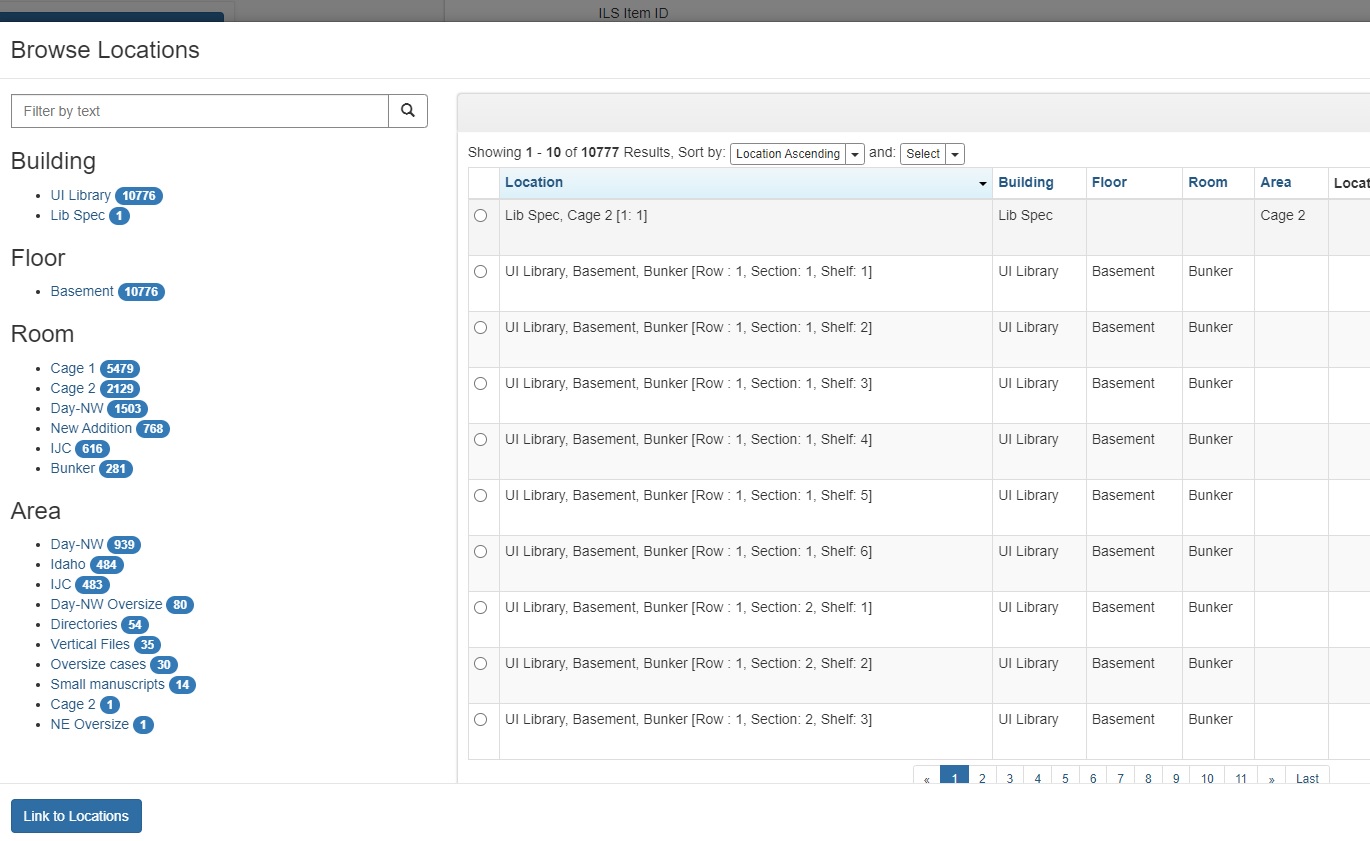
When searching for a location, filtering the result by Room is beneficial. After filtering to the area, you’re searching for, in the text box type in the row information.
- For example, if you’re putting a collection in Cage 1, in Row 113, select “Cage 1” from the Room. Then type in “113.”
- Once you find the location you need using the row, section, and shelf information you gathered, select the correct result. Then click Link to Locations. After linking, your screen will return here with the newly added location information.
Be sure to click Save Top Container. Now when you go back to the Resource Record and scroll to the Instances, the boxes will have locations attached to them.
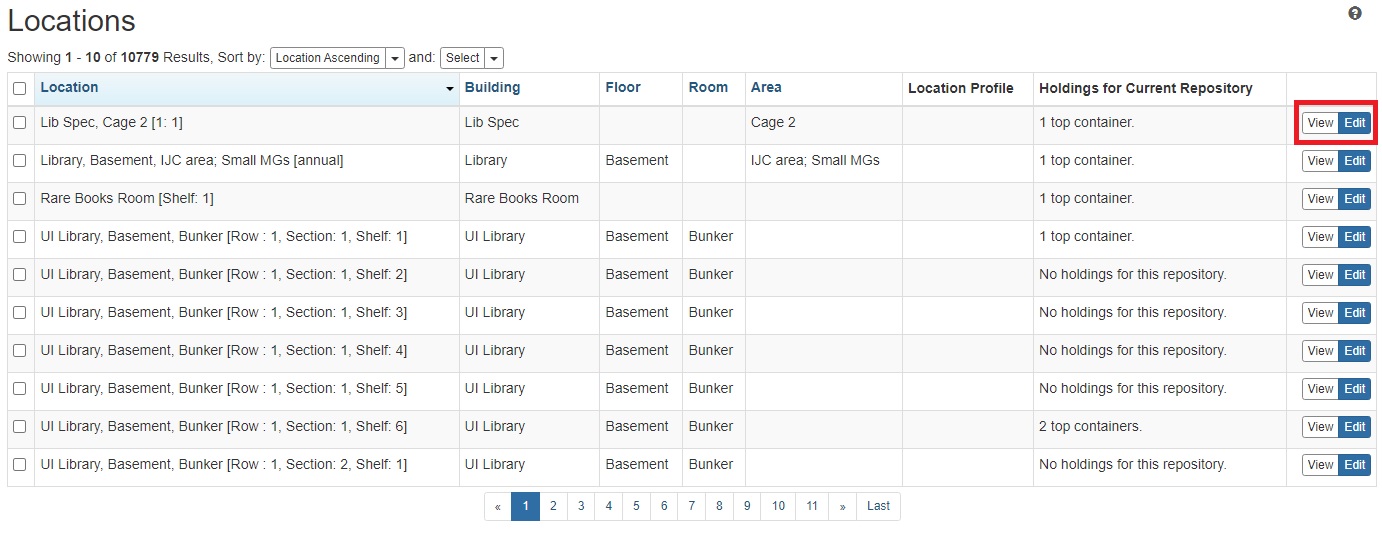
WARNING: When editing a box’s location, make sure you aren’t editing the actual location information as shown below. Changing this information doesn’t change box information, it changes the entire location record.
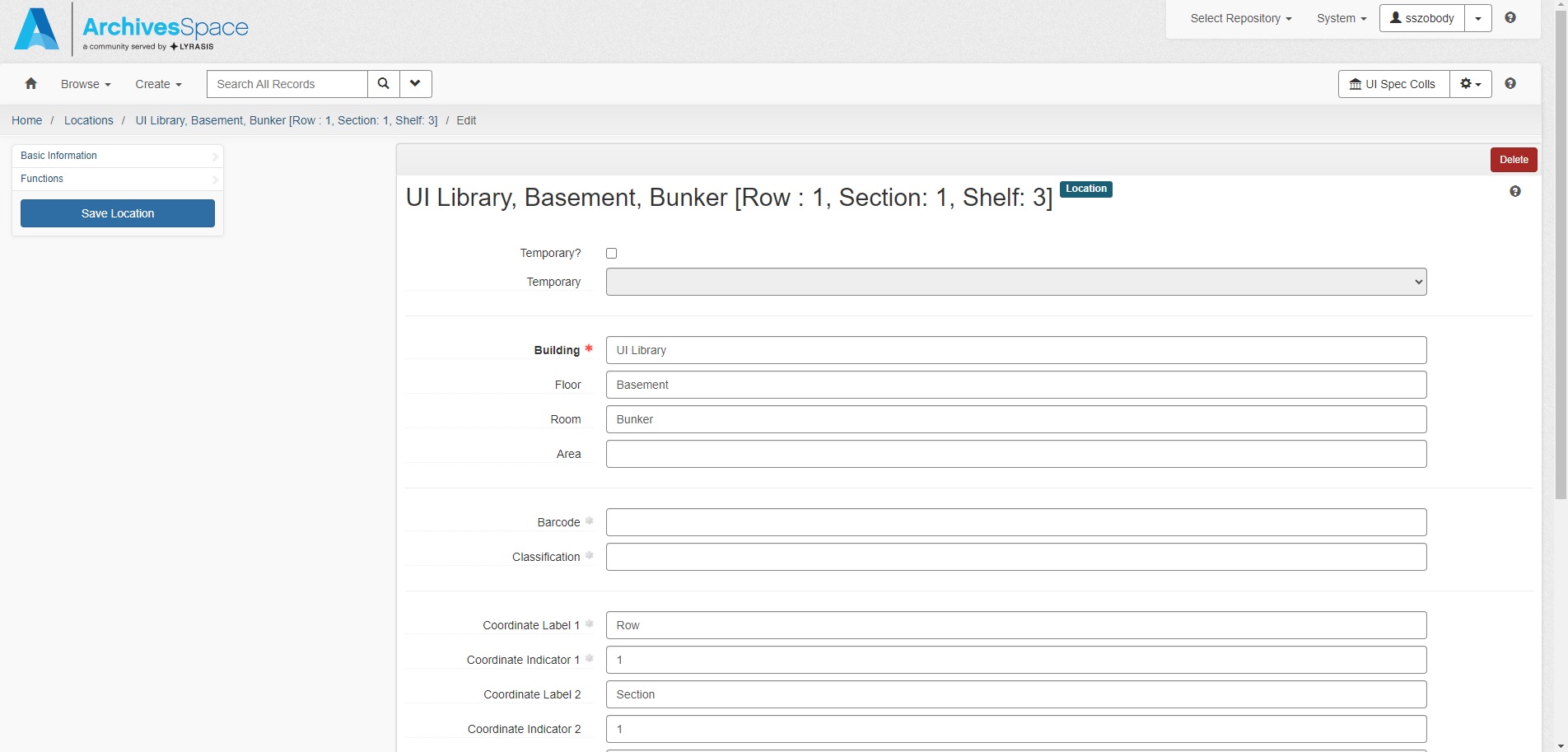
Creating or Editing Location Records in ArchivesSpace
If shelving a collection and there is no location record in ArchivesSpace, create one.
NOTE: Always double check if there is a location record to eliminate duplicate work!
- In ArchivesSpace, click Create.
- From the drop-down menu, hover over Location.
- Choose either Single Location or Create Batch Locations
- usually select Single Location
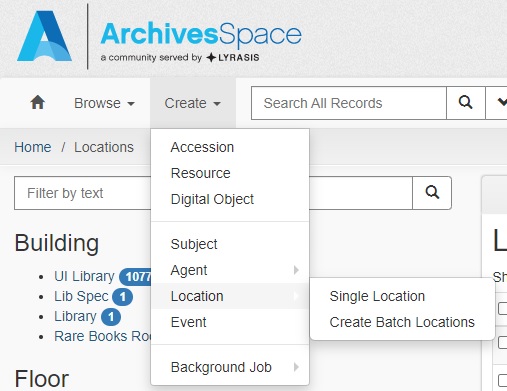
- Fill in New Location fields:
| Field | Required | Content | Examples |
|---|---|---|---|
| Temporary? | No | Skip | |
| Building | Yes | Type in: UI Library | |
| Floor | Yes | Type in: Basement | |
| Room | Yes | Type in storage area location. | Bunker, Cage 1, Cage 2, etc. |
| Area | No | Skip | |
| Barcode | No | Skip | |
| Classification | No | Skip | |
| Coordinate Label 1 | Yes | Type in: Row | |
| Coordinate Indicator 1 | Yes | Numerical | 1, 2, 3, etc. |
| Coordinate Label 2 | Yes | Type in: Section | |
| Coordinate Indicator 2 | Yes | Numerical | 1, 2, 3, etc. |
| Coordinate Label 3 | Yes | Type in: Shelf | |
| Coordinate Indicator 3 | Yes | Numerical | 1, 2, 3, etc. |
| Location Profile | No | Skip | |
| Repository | No | Skip |
-
When finished filling out fields, click the blue Save Location button.
-
To simply edit a location record, browse for the location and once found click the blue Edit button. Then edit necessary fields.